Guide
Getting started
Seven steps you do yourself, in order, inside the product: your organisation, two-factor sign-in, roles, your auditor, the first public scan, the first app, and the baseline it produces. About twenty-five minutes, plus the time your invitees take to accept.
Already have a login?
If we created your organisation and invited you as its Owner, start at step 2. From a blank sign-in page, start at step 1.
Find it in the address bar once you are signed in, after /accounts/. Leave it blank and the links open your account list instead.
Step 1 of 7
Create your organisation
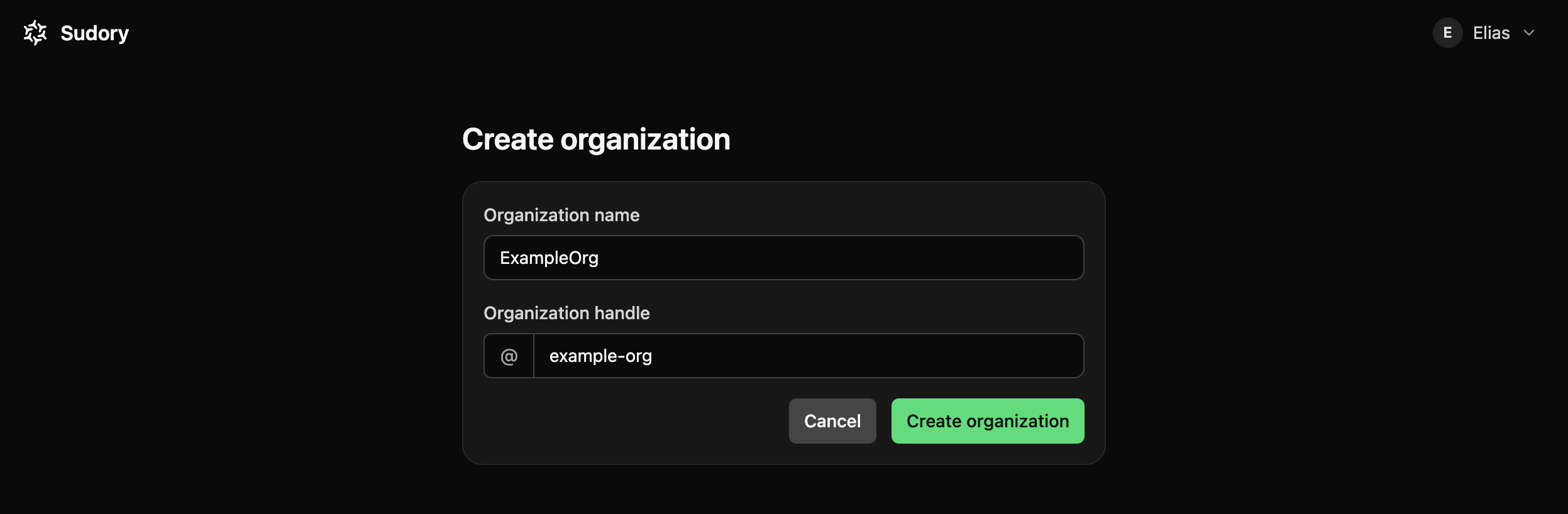
Sign in, then name your organisation
- 1.1Sign in with your work email. Sudory sends a code; there is no password to invent.
- 1.2Name your organisation. Sudory suggests a short handle for it, such as @your-org, which you can adjust before continuing.
- 1.3You land in the new account as its Owner: the role with full control, billing and deletion included.
Why it matters
Every reading, every integration and every finding in Sudory belongs to exactly one organisation. This is the workspace the rest of the guide sets up.
Step 2 of 7
Turn on two-factor sign-in
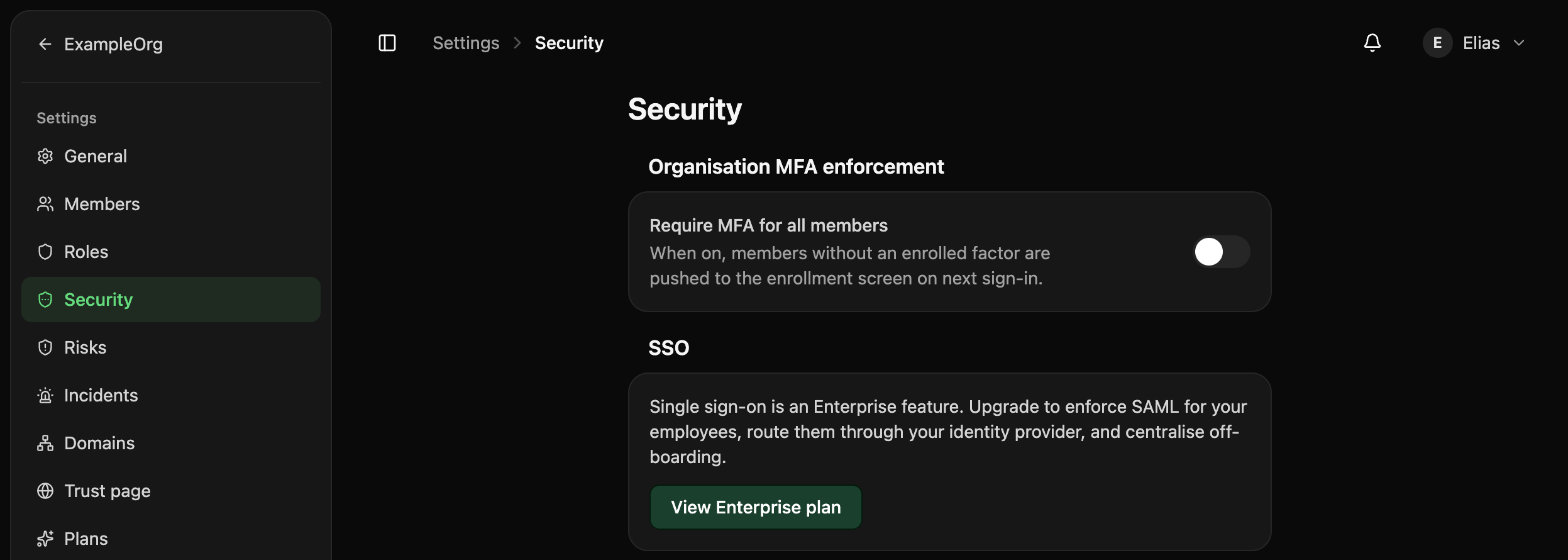
Settings, Security
Enrol your authenticator/accounts/your-org/settings/security
- 2.1Enrol your own account: open an authenticator app, scan the code Sudory shows, and keep the recovery codes somewhere safe.
- 2.2As Owner, switch on Require MFA under Settings, Security. Every member then enrols before they can sign in again.
Why it matters
Two-factor is one of the first things an auditor checks. Switching it on before inviting anyone means every teammate enrols as part of accepting the invitation, not as a separate request later.
This governs browser sign-ins. An API key your team creates for automation authenticates on its own and is not affected.
Step 3 of 7
Set up roles and invite your team
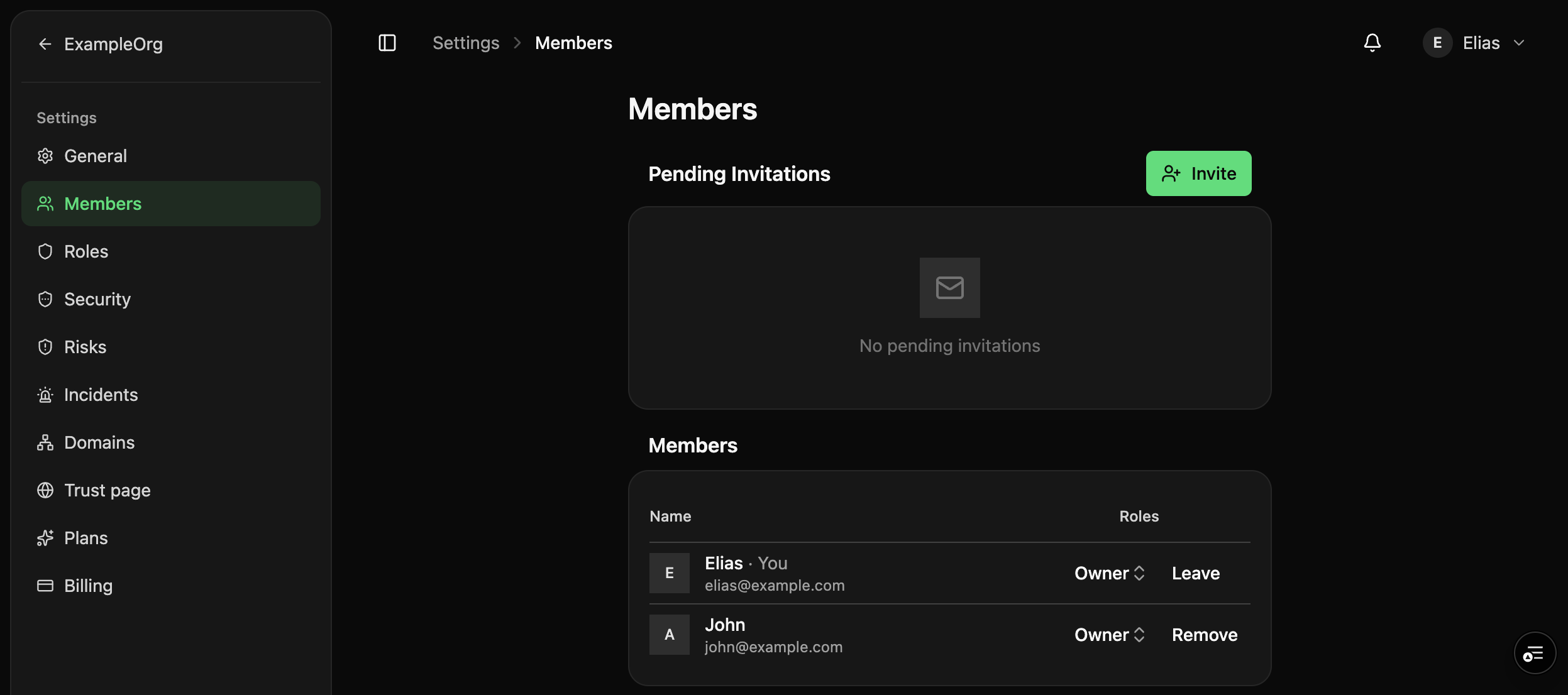
Settings, Members
/accounts/your-org/settings/members/accounts/your-org/settings/roles
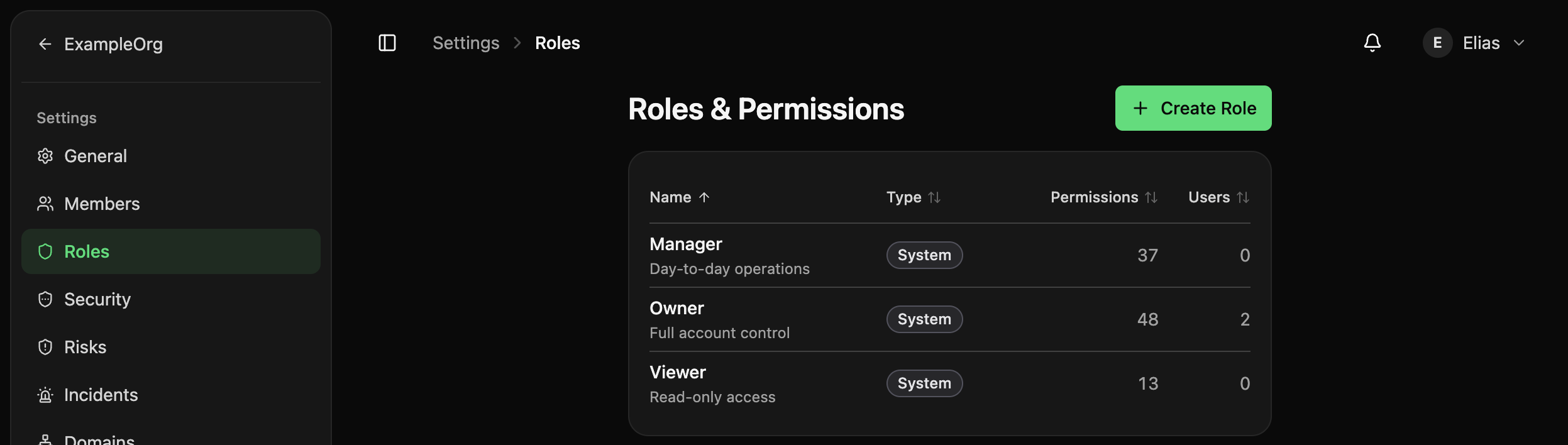
- 3.1Decide who needs what: Owner (full control, billing included), Manager (day-to-day work, no billing or role changes) or Viewer (read-only, no billing).
- 3.2If none of those fits a team exactly, define a custom role under Settings, Roles, with only the permissions it needs.
- 3.3Invite each teammate by email from Settings, Members. They receive a link to accept and, with MFA required, to enrol.
Why it matters
Getting roles right first is what makes the next step, inviting an outside auditor, safe: they only ever see what their role allows.
- 4.1Invite your auditor the same way as a teammate, from Settings, Members.
- 4.2Every invitation starts as Viewer: full visibility into findings, controls and evidence, no ability to change anything, no access to billing.
- 4.3If their responsibilities grow, an Owner can raise the role later from the same screen.
Why it matters
An auditor needs to see your posture, not operate your account. Viewer gives exactly that without a role to configure.
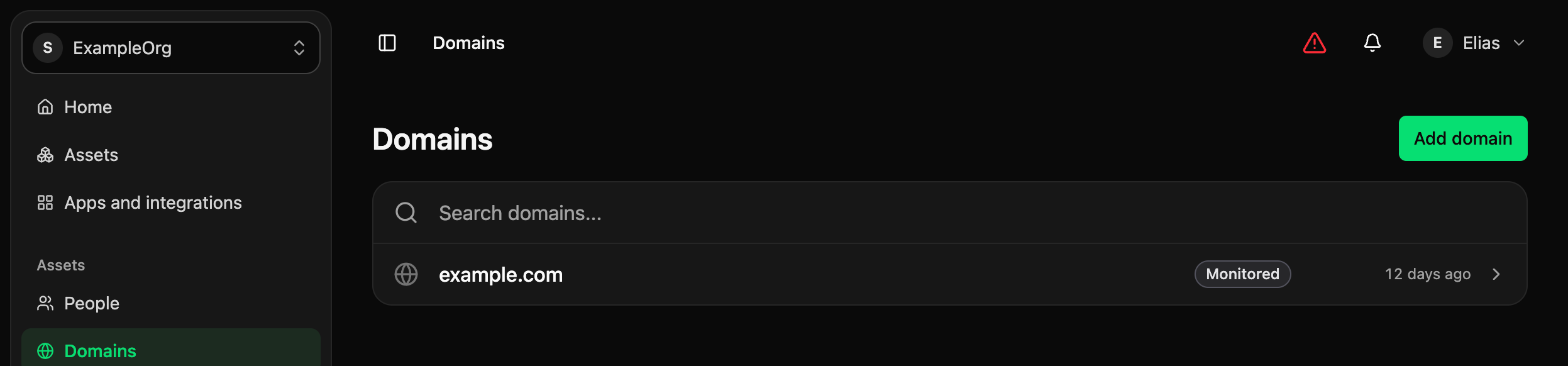
- 5.1Add your primary domain. Sudory scans what is publicly visible about it: DNS, mail security, website headers, without any credentials.
- 5.2When you are ready to go further, connect an app under Apps: your cloud, your identity provider and so on. Those run deeper, scheduled scans against systems that do need credentials.
Why it matters
The public scan is the fastest way to see Sudory working: nothing to set up beyond a domain name, and results within moments.
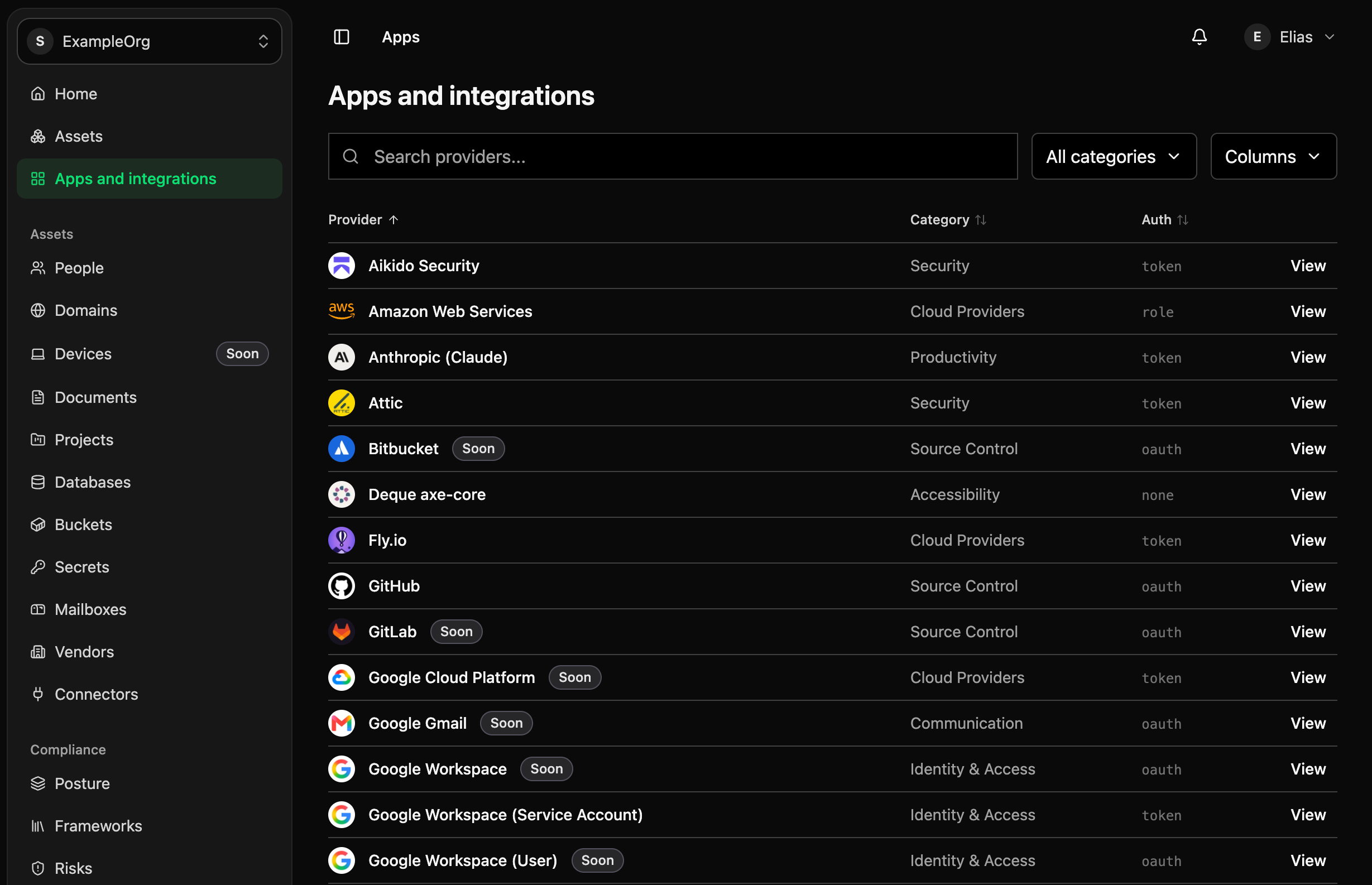
- 6.1Open Apps and pick one: your cloud account, your identity provider, or another system you run.
- 6.2Follow that provider's own setup. Most connect through a read-only token or role you create yourself; others through the provider's own sign-in and consent screen. Nothing long-lived is handed over up front.
- 6.3Once connected, Sudory runs a scheduled scan against it on top of the public scan from step 5.
Why it matters
The public scan is a snapshot of what is visible from outside. An app turns that into ongoing, scheduled coverage of the systems you actually run.
Only an Owner or Manager can connect an app. A Viewer, your auditor included, sees what is connected but cannot add one; the roles from step 3 already cover this.
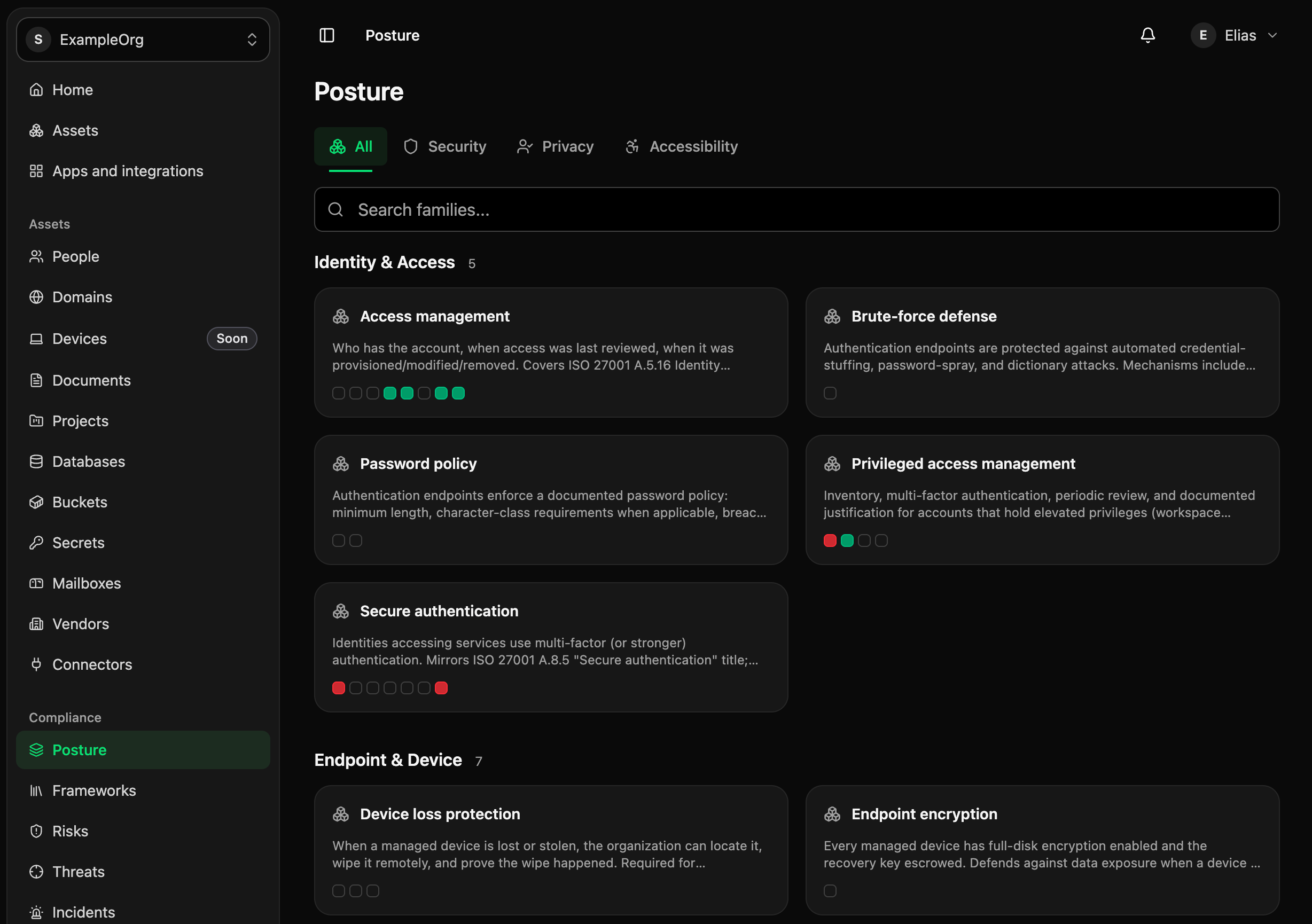
- 7.1Once the public scan and the connected app have run, open Posture to see your findings grouped by family: security, privacy, accessibility.
- 7.2This first result is your baseline: where things stand today.
- 7.3From here, every framework you adopt, every app you connect and every finding you resolve moves you forward from it, and you can see that progress over time.
Why it matters
You cannot show improvement without a starting point. This is it, and it is the first thing worth sharing with your auditor once they have accepted their invitation.
What comes next
Questions at any step? Your Sudory contact walks through it with you.
Adopt a framework
Choose the frameworks to track against, ISO 27001, SOC 2, NIS2 and the rest, and Sudory maps your findings to their controls.
OpenConnect more apps
Each app you connect extends the scheduled scans beyond the public scan from step 5.
OpenCheck your vendors
Every vendor you evaluate becomes a profile in the open database, and your register fills itself.
Open
See it on your own tools
Thirty minutes. We connect one of your integrations live and show the first readings landing on your controls.